

Zabbix power and temperature monitoring on a 3D room
Zabbix already collects PDU and UPS power, UPS runtime, load and battery charge, and rack and server inlet temperatures; its dashboards show them as graphs and 2D maps, not in the rack they belong to. DC Sim reads Zabbix 6.0 or later through its API with a read-only token: items are recognised by key and unit, hosts are matched to the devices and power nodes of your twin by host name, visible name or inventory serial, and open problems become alarms on the matching device. Build the room first from the Excel template or NetBox; each sync then adds the latest readings and the open problems, and you can fail the UPS Zabbix is watching to see what goes dark.
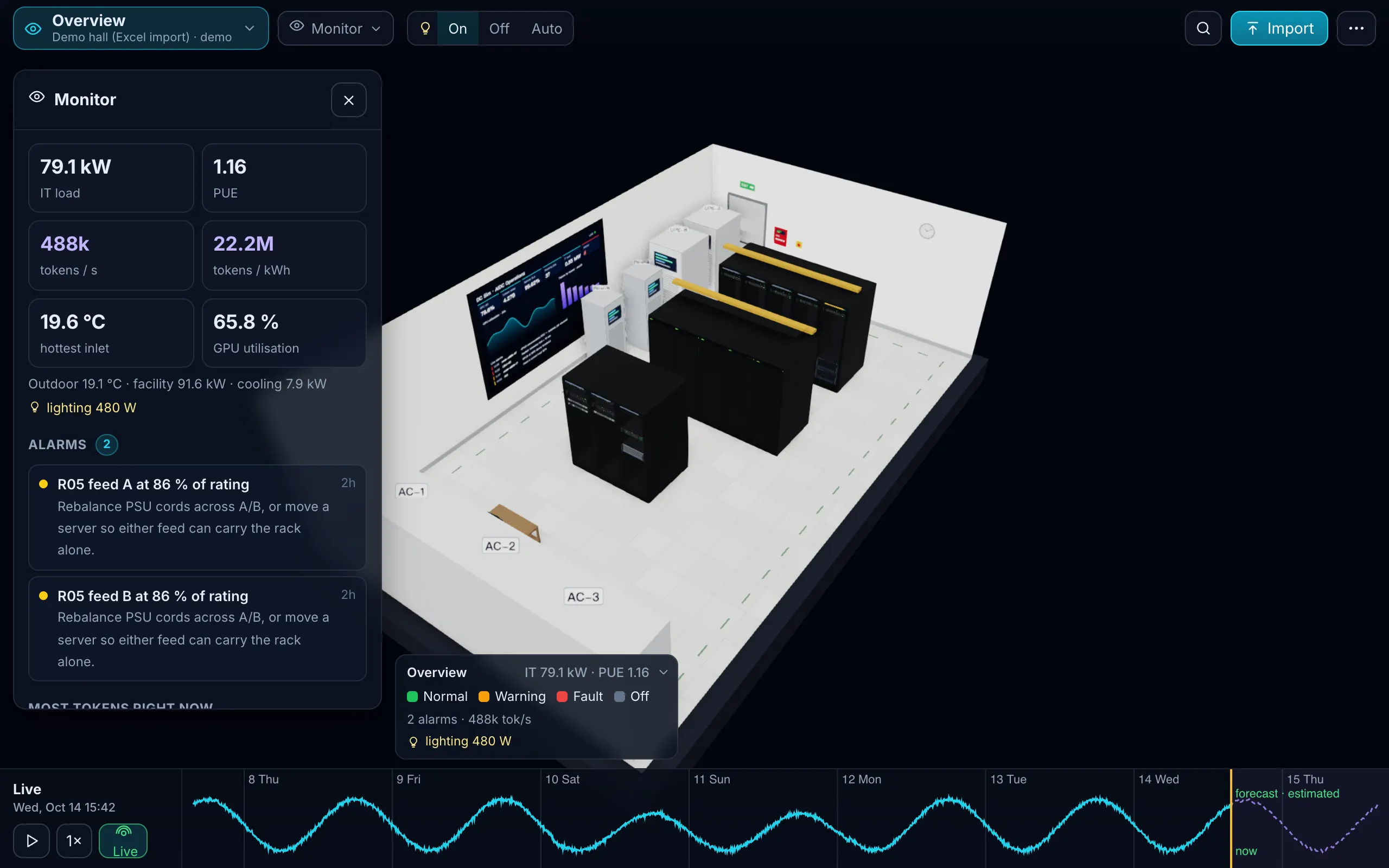
What to monitor for power and temperature, and what Zabbix shows
| Measurement | Where Zabbix usually gets it | What DC Sim does with it |
|---|---|---|
| UPS runtime remaining, load %, battery charge %, on battery | a UPS template by SNMP (the standard UPS-MIB or the vendor’s MIB) | runtime, load and charge on the UPS in the one-line diagram |
| PDU power and current | a PDU template by SNMP: inlet total, per phase, sometimes per outlet | load on the PDU; overloads when the other feed is lost |
| Server power and inlet temperature | IPMI on the BMC, or the server’s SNMP agent | power on the device; inlet on its rack |
| Rack inlet temperature and humidity | sensors at the rack front, by SNMP or Modbus | inlet colour on the Air layer |
| CPU utilisation, ping, interface traffic | the Zabbix agent, ICMP checks, SNMP interfaces | device status and link utilisation on the Network layer |
Zabbix dashboards draw these as graphs, top-host lists, maps and geomaps (gauges from 7.0). A Zabbix map is a 2D drawing: a background image, icons placed by hand, links you draw. None of them knows that PDU-R05-B feeds the servers in rack R05, so none can say what happens to those servers when PDU-R05-A fails. That is the gap a twin fills: the same readings, on a model that knows the chain.
1. Build the room first
Zabbix knows hosts and items. It does not know rack positions or which feed powers which PDU (reading rack positions from host inventory is on the roadmap). The readings need somewhere to land, so build the room before you connect:
- From the Excel template: Devices, Racks and Power at least.
- From NetBox: see how to turn NetBox into a 3D data center model.
Use the Zabbix host names as device names, and name the UPS and PDU rows of the Power sheet the way their hosts are named. A UPS host called UPS-A then lands on the UPS-A node of the one-line diagram, and its runtime and load show there.
2. A read-only Zabbix user and API token
- Version: Zabbix 6.0 or later. Below 6.4 the token travels in the request body, from 6.4 as a Bearer header; DC Sim picks the right one from the version.
- User group: Read permission on the host groups that hold your UPSes, PDUs, sensors and servers. Hosts outside those groups are invisible to the token, and so are their problems.
- Role: user type User, API access enabled, API methods limited to an allow list:
host.get,item.get,problem.get,trigger.get. - Credentials: an API token for that user, with an expiry date. A read-only username and password also work.
- Network: a Zabbix inside your network is read by the DC Sim agent, which dials out over one WebSocket and never listens on a port. The token stays in the agent’s configuration; the agent reports open problems every 60 seconds.
3. Which items become readings
The mapping goes by item key and unit, so stock templates and your own items both work without renaming. The key or name only has to tell an inlet from a CPU temperature, and UPS runtime from UPS load.
| Zabbix item | Becomes | Shown on |
|---|---|---|
| Power in W or kW, on a PDU, UPS or server host | power reading on that node or device | Power layer; tokens per kWh on the Token layer |
| Current in A | current reading on the PDU | Power layer |
| Temperature whose key or name says inlet, intake or ambient | inlet reading on the rack | Air layer |
| CPU or processor temperature | CPU temperature on the device | Device layer |
| UPS runtime or time remaining | UPS runtime in minutes | UPS node on the diagram |
| UPS load in % | UPS load | UPS node on the diagram |
| Battery capacity or charge in % | battery charge | UPS node on the diagram |
| Humidity in %, fan speed in rpm | humidity, fan speed | Air and Device layers |
system.cpu.util, icmpping | CPU utilisation, up or down | Device layer |
net.if.in / net.if.out on an interface | link traffic on that port | Network layer |
| Open problem, severity Disaster or High | critical alarm on the device | all layers |
| Open problem, severity Average / Warning | major / minor alarm | all layers |
DC Sim keeps one value per host and metric, the latest, and a later sync replaces it. Three things follow from that:
- Set the unit on every item. A power item without W or kW, or a load item without %, is not recognised.
- Name inlet sensors as inlet. A rack-front sensor whose key and name only say “temperature” becomes a generic temperature, not the rack’s inlet.
- Give each PDU host a total power item. Per-outlet items on the same host are not added up; the PDU’s load should come from its inlet or total reading. Outlet-level loads come from each device’s own readings or from the catalog’s typical draw.
4. How hosts are matched
A host matches a device or power node when its host name, its visible name or its inventory serial number equals the device’s name or serial in the twin. Preview tells you how many matched before anything is added, for example “4 of 5 hosts match devices · 6 readings · 2 open problems on matching devices”.
Unmatched hosts are listed, and their readings and problems are left out. The usual causes:
- FQDN against short names.
pdu-r05-b.dc1.example.comis notPDU-R05-B. Set the visible name in Zabbix, or rename the device. - Different estates. Our Zabbix test instance (6.0.48, 1,417 hosts) matched none of the demo hall’s devices at first, as it should: its hosts are a different estate. Matching is by name, so the room and the monitoring must describe the same things.
- No inventory. Serial matching needs the host inventory’s serial number filled in, by hand or in automatic inventory mode from an item that populates that field.
5. Connect, Test, Preview, Import
- Open ⋯ → Connect NetBox or Zabbix, choose Zabbix, paste the URL and the token (or user and password), press Test. Against the test instance, Test reported Zabbix 6.0.48 · 1,417 hosts · 1,375 items · 130 problems in 1.2 seconds.
- Preview shows the matched hosts, a sample of the readings and the alarms that will be added.
- Import (“Add readings and alarms”) adds them and creates a new version of the model.
- Sync again for fresh values: same host and metric are replaced, open problems refreshed. Through the agent, problems arrive every minute and an alarm expires 10 minutes after its last report. On the direct path, alarms are kept for the last 24 hours in memory; keeping them across server restarts is on the roadmap.
No API access? Export recent item values per host and put them in the template’s Readings sheet (time, item, metric, value), with the hosts in the Devices sheet. Three or more times per item and metric are kept as a history.
6. Triggers worth having in Zabbix anyway
The twin does not replace alerting. These four triggers catch most power and temperature trouble before a what-if is needed:
| Trigger | Threshold | Why |
|---|---|---|
| Rack inlet high | above 27 °C | the top of the ASHRAE recommended range of 18 to 27 °C |
| UPS on battery | output source is battery | the utility is gone; everything after is runtime |
| UPS runtime low | below generator start time plus a margin | the survivor must last until the generator carries the load |
| PDU per feed above 40 % of its rating | on each PDU of an A/B pair | if one feed fails, the other carries the whole rack; above 40 % each, the survivor ends above 80 % |
The last one is the 80 % rule applied to failover: a rack on two 16 A, 230 V PDUs (3.68 kW each) must stay under 2.94 kW in total, not per PDU.
7. What a what-if adds on top of monitoring
Zabbix tells you what is true now. A twin answers what would be true after a failure, using what Zabbix measured.
- Fail the UPS. Click UPS-A on the one-line diagram and press Fail. The banner lists the devices that lose power, those left on one feed, the services that stop and every node that overloads, with its percentage. On the demo hall: 2 devices lose power, 90 run on one feed, PDU-R05-B at 113.9 %. With Zabbix readings, those percentages come from your measured watts, not the catalog’s typical draw.
- Runtime on the survivor. Zabbix might show UPS-B at 45 % load with 24 minutes left. After UPS-A fails, UPS-B carries both sides, about 90 %: roughly 12 minutes by the first-order rule (minutes ≈ usable kWh × 60 ÷ load in kW), less in practice because batteries deliver less energy at high discharge. The diagram shows runtime per UPS after the fail, labelled estimated where it is.
- Stop a cooling unit. The scenario gives the minutes until the hottest inlet passes 27, 32 and 35 °C, estimated by a zonal air model, not CFD.
- Replay. Every critical and major alarm of the week sits on the time slider; click one and the room jumps there.
For the full method, from the sheet to the fix list, see the UPS failure impact analysis.
7 steps
Build the room first
Import the racks, devices and power chain from the Excel template or from NetBox. Name devices, UPSes and PDUs the way the hosts are named in Zabbix, because that name is the match.
Create a read-only Zabbix user and API token
A user group with Read permission on the host groups that hold your UPSes, PDUs, sensors and servers; a role with API access limited to host.get, item.get, problem.get and trigger.get; an API token for that user.
Check the items before you connect
Every power, temperature and UPS item has its unit set, inlet sensors say inlet, intake or ambient in the key or name, and each PDU host has a total or inlet power item.
Connect and Test
In DC Sim open ⋯ → Connect NetBox or Zabbix, choose Zabbix, paste the URL and the token and press Test. Test shows the Zabbix version and how many hosts, items and open problems the token can see.
Preview the matches
Preview shows how many hosts match devices in your twin, the readings that will be added and the open problems on matching devices. Fix names until the count is right.
Import readings and alarms
Import adds the latest value per host and metric as readings and the open problems as alarms on their devices. Each later sync replaces readings with newer values and refreshes the alarms.
Fail what Zabbix is watching
Click the UPS or PDU on the one-line diagram and press Fail: the banner lists what goes dark, what runs on one feed, which services stop and what overloads, using the loads Zabbix measured.
What happens in this clip
- Demo hall: 13 racks, fed from feed A and feed B, in the Power layer with the room lights off.
- Lose feed A at peak: the one-line power diagram shows the chain from utility and generator through the ATS, UPS-A and UPS-B, the panels and every rack PDU.
- Fail UPS-A. Banner: 2 devices lose power, 90 run on one feed, overloaded: PDU-R05-B at 113.9 %.
- Single-corded devices go dark and the other PDU overloads; the 3D room shows the racks on one feed in amber.
- The scenario timeline lists which services stop and which racks survive on one feed.
- End card: Fail anything. See what goes dark.
What happens in this clip
- Air layer: rack inlet temperatures as a floor heat map, estimated.
- The CRAH unit AC-1 stops at peak load (Simulate failure in its inspector).
- The scenario panel shows the minutes until the hottest rack inlet passes 27, 32 and 35 °C (10:35, 21:15 and 28:00 in this run), estimated by a zonal air model, not CFD; peak inlet 35.9 °C, no devices off.
- The alarm comes with advice before the real one: the remaining units AC-2 and AC-3 run at 95 % of capacity.
- End card: Design it. Run it. Fail it first.
Can Zabbix show a 3D view of the data center?
No. Zabbix maps are 2D: a background image with host icons you place by hand, and the Geomap widget places hosts on a world map. A 3D room with the power chain needs a tool that reads Zabbix through its API; DC Sim does that with a read-only token.
Which Zabbix versions and credentials work?
Zabbix 6.0 and later, with an API token or a read-only username and password. It is tested against a Zabbix 6.0.48 demo instance with 1,417 hosts.
Why do my hosts not match?
Hosts match by host name, visible name or the inventory serial number. A host called pdu-r05-b.dc1.example.com does not match a PDU called PDU-R05-B: set the visible name in Zabbix to the device name, or name the device after the host.
Does DC Sim change anything in Zabbix?
No. It calls read methods only: hosts with their inventory, the latest item values and the open problems. It does not acknowledge or close problems and writes nothing to Zabbix.
What does it cost?
The Zabbix and NetBox connectors are part of Monitor: $5 per rack per month with a $49 minimum. Design is one-time per project from $490. Today every license starts with a walkthrough on your own data.
One Excel file. Your room in 3D.
Download the import template (v1.5, twelve sheets, only Devices required) and the filled example from our demo hall. No form, no email needed, no macros in the files.
Fill in the Devices sheet and send it with your walkthrough request; we import it on the call. What each sheet does